ConnectS User Guide
Welcome to ConnectS's user guide! As computing teaching assistants (TAs), ConnectS is your best friend in helping you centralise all your tutees' contact information into one management app.
ConnectS separates your tutee contacts into their different modules and tutorial groups, and records information you will use the most, like telegram handles and emails. You can enjoy the many commands available to help you navigate, edit, delete, find and sort through your tutees' information.
If you are fast at typing, ConnectS's command line interface (CLI) specialisation can help you manage your tutee's contacts faster than other contact apps, whilst still allowing you to enjoy the convenience of a graphic user interface (GUI).
Table of contents
- How to use this Guide
- Features
- FAQ
- Known issues
- Command summary
- Glossary
How to use this Guide
If you are a beginner looking to get started: Visit the Quick Start section just below.
If you've already set up ConnectS, visit the features section to see what commands are available in ConnectS.
If you are a returning user looking to refresh yourself on command formatting, visit the command summary for a quick overview.
Confused by what certain terms mean? Visit the glossary.
Visit the table above to quickly access parts of the guide via hyperlink.
Quick start
Ensure you have Java
17or above installed in your Computer.- For Windows, Linux and Mac: Setup Guide
Mac users: Ensure you have the exact JDK version prescribed here.
Download the latest
.jarfile from here.Create a new folder where you want to store ConnectS, and place the
.jarfile inside.Open a command terminal,
cdinto the folder you put the jar file in.Guide to open command terminal in the
.jarfolder:For Windows and Linux: Navigate to the folder, then right-click in the folder and select "Open in Terminal" or "Open PowerShell window here".
For Mac users: You may use this guide here.
Use the
java -jar ConnectS.jarcommand to run ConnectS.
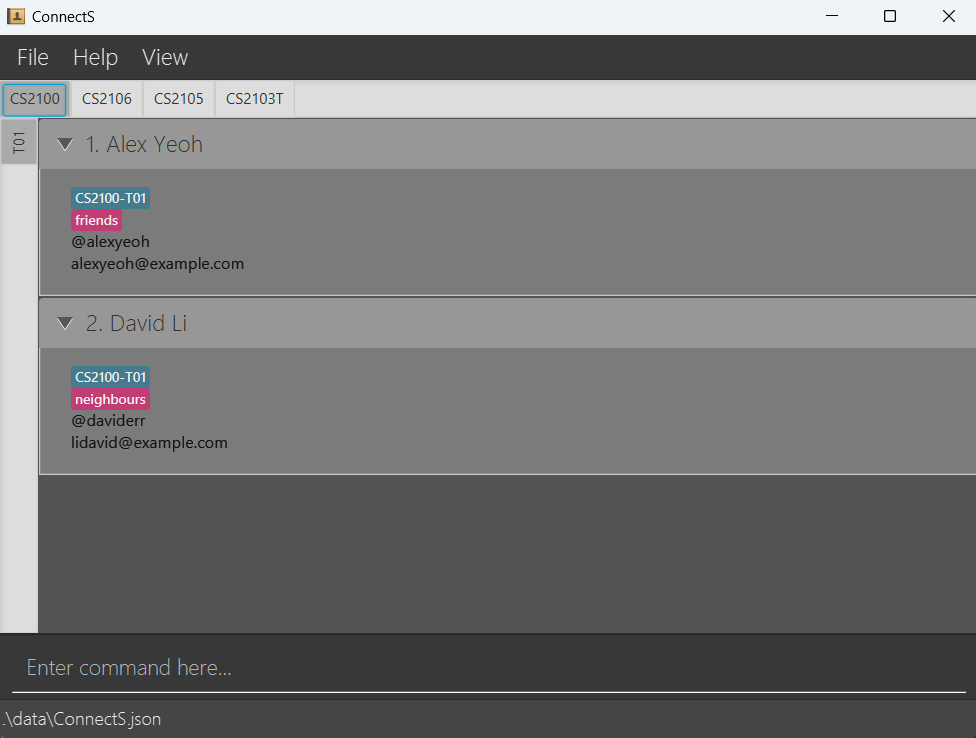
A GUI like the image below should appear in a few seconds. Note how the app contains some sample data.
Type the command in the command box and press Enter to execute it. e.g. typing
helpand pressing Enter will list all commands.
Some example commands you can try:list: Lists all tutee.add n/John Doe t/@johndoe e/johnd@example.com m/CS2103T-F10: Adds a tutee namedJohn Doeto ConnectS.delete 3: Deletes the 3rd tutee shown in the current list.view m/CS2103T-T02: Switches the viewing tab to tutorial group T02 under module CS2103T, if it exists.exit: Exits the app.
Refer to the features below for details of each command.
Features
Command Formatting
Notes about the command format:
When you see a word in
UPPER_CASE, that word is a parameter that you enter.
e.g. inadd n/NAME,NAMEis a parameter which can be used asadd n/John Doe.If you see parameters in square brackets, they are optional.
e.g.add [tag/TAG...]allows for the tag parameter to be omitted.If you see parameters in curly brackets, you can use any combination of the parameters, but you must have at least one.
e.g.edit INDEX {n/NAME t/TELEGRAM_HANDLE e/EMAIL}can be used asedit 1 n/Doeor asedit 2 n/Doe t/@JohnDoeor asedit 1 e/john@example.com, but notedit 1alone.If you see parameters in triangle brackets, you can use any of them, but you must have only one.
e.g.find <n/NAME... t/TELEGRAM_HANDLE... e/EMAIL...>can be used asfind n/Doeorfind t/@johndoe, but not asfind n/Doe t/@johndoe.If you see parameters with
...after them, it means they can be used multiple times.
e.g.m/MODULE-TUTORIAL_GROUP...can be used asm/CS2101-T06,m/CS1101S-T55 m/CS2030S-T08etc.You can give parameters in any order.
e.g. if the command specifiesn/NAME t/TELEGRAM_HANDLE,t/TELEGRAM_HANDLE n/NAMEis also acceptable.If you type in extra lines behind commands that don't require parameters (such as
help,list,exitandclear), it will be ignored.
e.g. if you typehelp 123, it will be interpreted ashelp.Command words are case-insensitive.
e.g.ADD,deLETEMoDare the same asaddanddeleteModrespectively.If you are using a PDF version of this document, be careful when copying and pasting commands as some spaces may be omitted.
Parameter Formatting
Notes about the parameter restrictions:
NAMEparameters only allow alphanumeric characters, and can have multiple words.
e.g.John,John DoeorJohn @123are allowed, butJohn (Doe)is not.TELEGRAM_HANDLEparameters only allow one word which must start with@, followed by at least 5 alphanumeric characters._is allowed, but not at the start or end of the handle.
e.g.@johnnyand@john_doeare allowed, butjohnny,@johnand@_johnare not.EMAILparameters only allow for the formatLOCAL_PART@DOMAIN.LOCAL_PARTconsists of alphanumeric characters. It can also include+-_.characters, but cannot start or end with them.DOMAINconsists ofDOMAIN_LABELSDOMAIN_LABELSconsists of alphanumeric characters, separated only by hyphens, if any.- A
DOMAINconsists of at least twoDOMAIN_LABELS, separated by a.. - The last
DOMAIN_LABELmust be at least 2 characters long.
e.g.
john+doe@example.comis allowed, but+johndoe@example.comandjohn+doe@exampleare not.MODULE-TUTORIAL_GROUPparameters only allow the formatMODULE-TUTORIAL.MODULEandTUTORIAlboth consist of only alphanumeric characters, and are case-insensitive.MODULEandTUTORIALare separated by a hyphen.
e.g.
cs2103T-t02is allowed, butHSI1000 W01is not.TAGparameters only allow alphanumeric characters, and can have only one word.
e.g.latecomeris allowed, butneeds more helpis not.INDEXparameters refer to the index numbers of the currently displayed tutee list.- Only positive integers are allowed. e.g.
1,2,3... - Only values that exist within the currently displayed tutee list are allowed. e.g. in the following
list,
1and2are valid indexes, but3and above are not.
- Only positive integers are allowed. e.g.
Popups
Notes about popups:
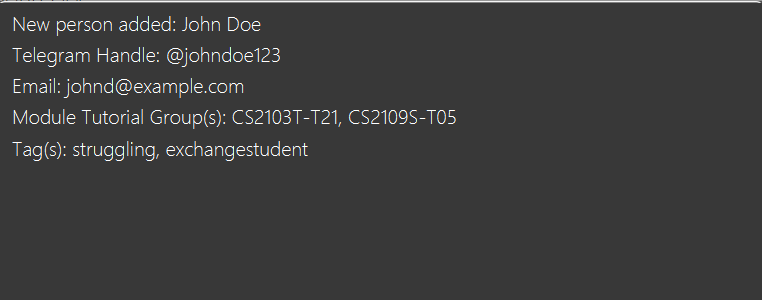
After you input a command, ConnectS will show a popup that gives you an overview of the command's effect.
e.g.addcommand's success popup:
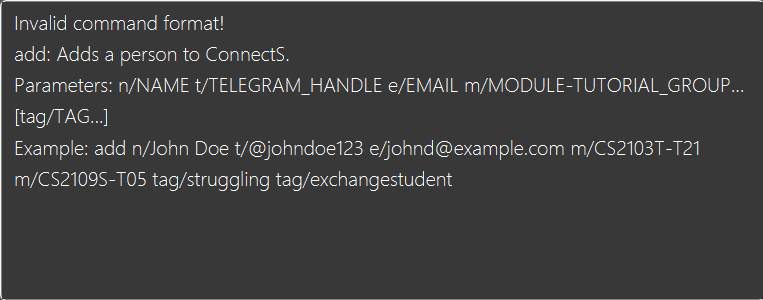
If you make a mistake in command formatting or provide an invalid parameter, ConnectS will show a popup telling you of the mistake.
e.g.addcommand's formatting error popup:
Popups will be automatically closed whenever you press a key, or click outside of the popup window. Popups don't expire.
Viewing help : help
You can find a brief overview of all the commands by using this command.
Format: help
Adding a tutee: add
You can add a tutee with their name, telegram handle, email, module-tutorial group and custom tags using this command.
Format: add n/NAME t/TELEGRAM_HANDLE e/EMAIL m/MODULE-TUTORIAL_GROUP... [tag/TAG...]
- You cannot add tutees with the same name, telegram handle or email as an existing tutee.
- Case is not taken into account when checking for duplicate names/telegram handles/emails. (e.g.
johnandJohnare considered the same name.)
Tip: You may add multiple module-tutorial groups and tags to a single tutee!
Example:
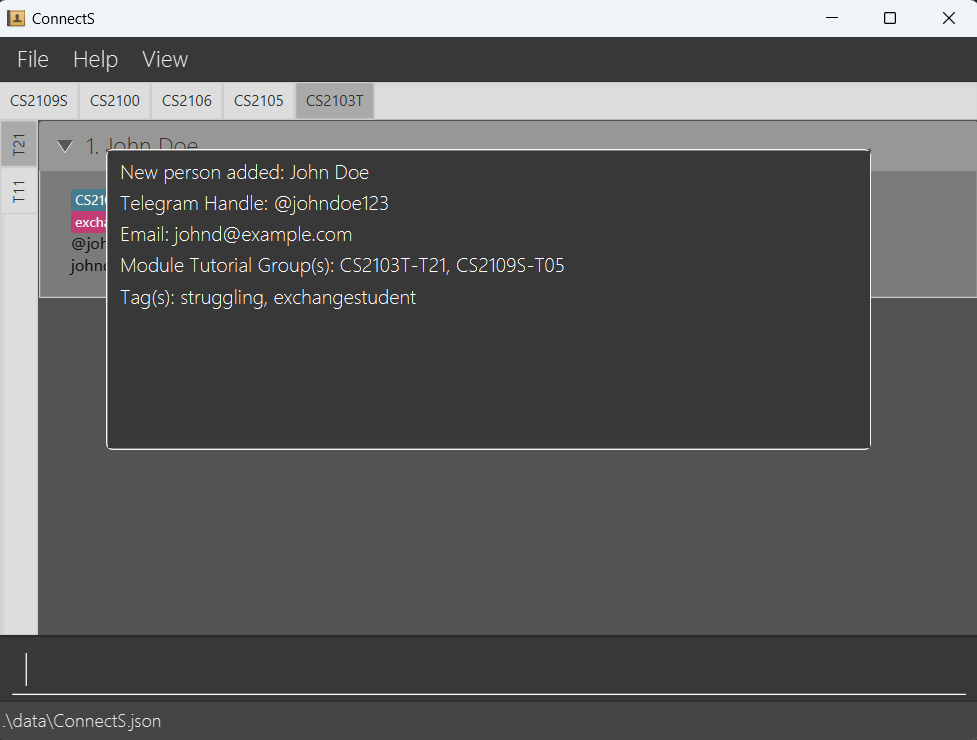
add n/John Doe t/@johndoe123 e/johnd@example.com m/CS2103T-T21 m/CS2109S-T05 tag/struggling tag/exchangestudentadds a tutee with the provided details.
This confirmation message will appear:
Tip: If you need to add two tutees with the same name, you can use their full names or add numbers to differentiate between them.
e.g. John Doe 1 and John Doe 2 for two tutees named John Doe.
Listing all tutees : list
You can see all the tutees you've added using this command.
Format: list
- List command will switch the view to the "View All" mode which displays a list of all tutees.
Tip: After using this command, use the view command to view a specific module's tutorial.
Editing a tutee : edit
You can edit a tutee's information using this command.
Format: edit INDEX {n/NAME t/TELEGRAM_HANDLE e/EMAIL m/MODULE-TUTORIAL_GROUP... tag/TAG...}
- Edits the tutee at the specified
INDEXof the currently displayed list. - At least one of the optional fields must be provided.
- Existing values will be updated to the input values.
- When editing module-tutorial groups or tags, the existing module-tutorial groups or tags of the tutee will be overwritten.
- You cannot edit a tutee to have the same name, telegram handle or email as an existing tutee.
- Case is not taken into account when checking for duplicate names/telegram handles/emails. (e.g.
johnandJohnare considered the same name.)
Example:
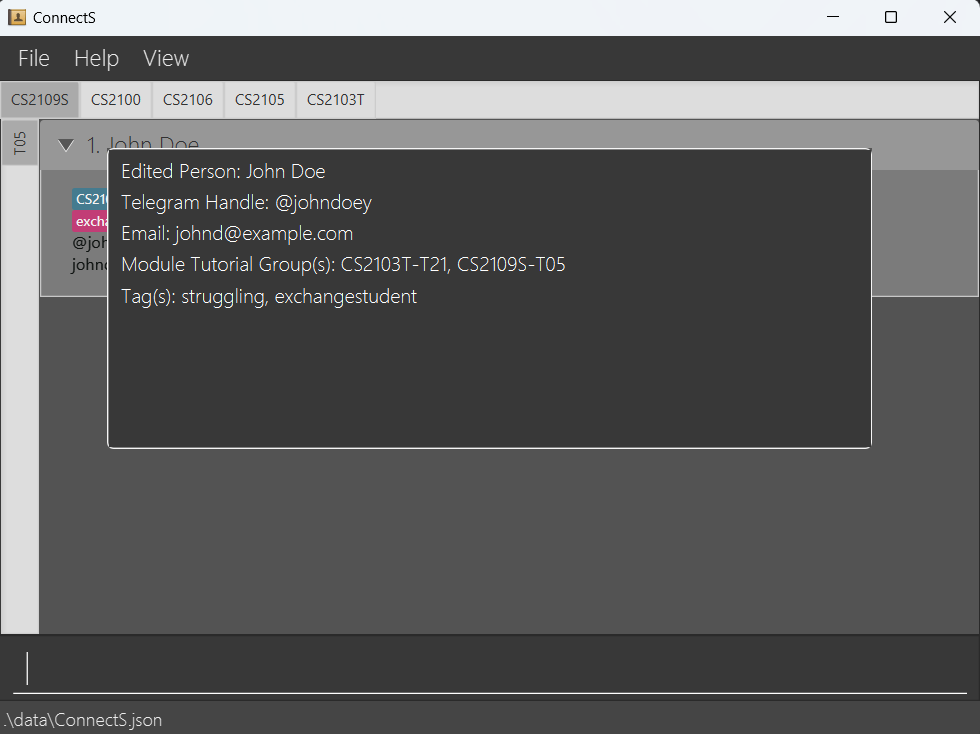
edit 1 t/@johndoey e/johnd@example.comEdits the telegram handle and email address of the 1st tutee to be@johndoeyandjohnd@example.comrespectively.
This confirmation message will appear:
Note: Editing a tutee's information will remove all filters to the list.
Finding a tutee: find
You can find tutees whose name, telegram handle or email matches the given keyword using this command.
Format: find <n/NAME_KEYWORD... t/TELEGRAM_HANDLE_KEYWORD... e/EMAIL_KEYWORD...>
- The search is case-insensitive. e.g
hanswill matchHans - The order of the keywords does not matter. e.g.
Hans Bowill matchBo Hans - Only the name, telegram handle, or email can be searched, and only one at a time.
- Partial words can also be matched e.g.
Hanwill matchHans - To search with multiple keywords, only use the corresponding prefix once. e.g.
find n/Alex Bobis correct, butfind n/Alex n/Bobis not. - Tutees matching at least one keyword will be returned (i.e.
ORsearch). e.g.Hans Booranwill returnHans Gruber,Bo Yang
Example:
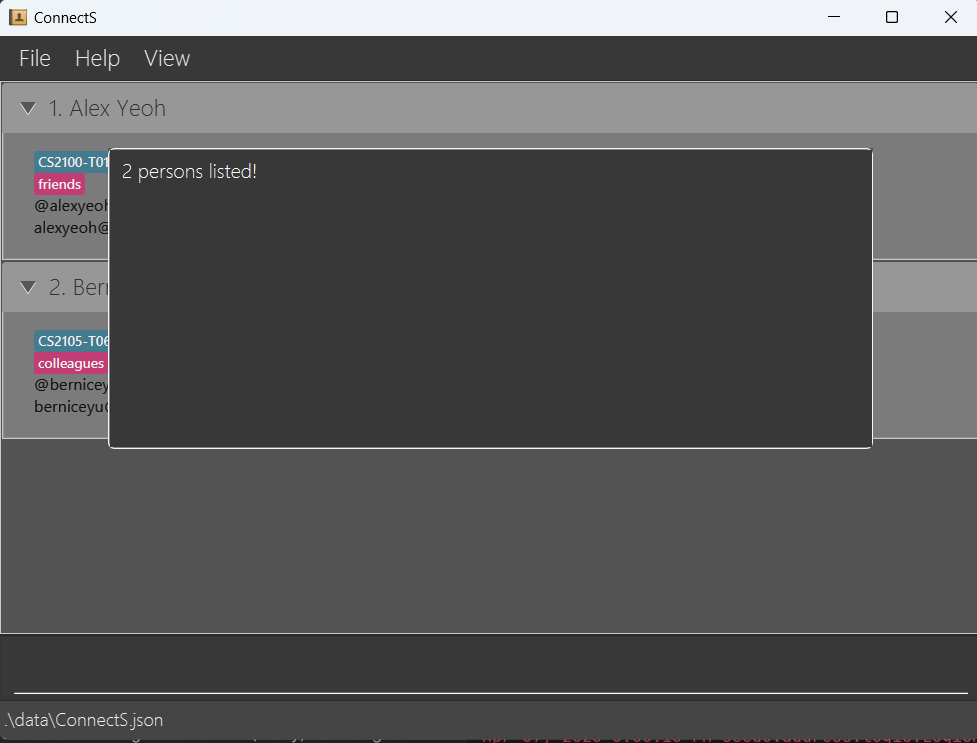
find n/Alex Bernicereturns tutees with namesAlex YeohandBernice Yu.
This confirmation message will appear:
Tip: After using this command, use a list command to be able to see all the tutees again.
Deleting a tutee : delete
You can delete a tutee using this command.
Format: delete INDEX
- Deletes the tutee at the specified
INDEXof the currently displayed list.
Example:
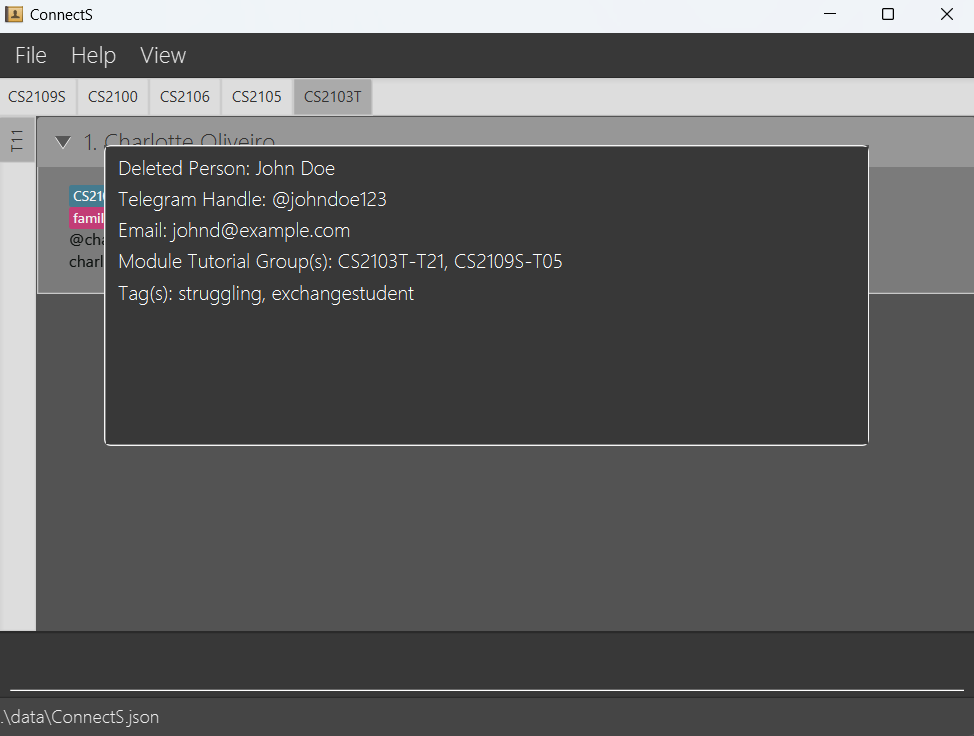
find n/Johnfollowed bydelete 1deletes the 1st tutee in the results of thefindcommand.
This confirmation message will appear:
Deleting a module : deleteMod
You can delete a module using this command.
Format: deleteMod MODULE_CODE
- The module and all its associated tutorials will be deleted from every tutee's module-tutorial list.
- After the deletion, if a tutee does not belong to any module-tutorial group, that tutee will be automatically deleted.
Example:
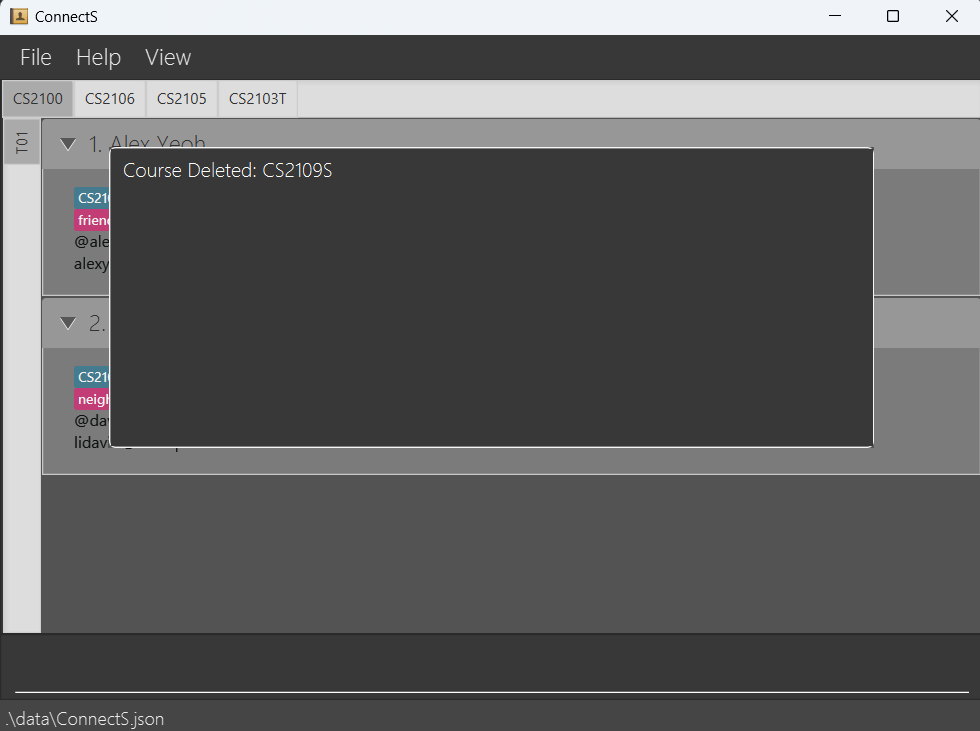
deleteMod CS2109Sdeletes the module CS2109S in ConnectS.
This confirmation message will appear:
Deleting a tutorial (of a specific module) : deleteTut
You can delete a tutorial (of a specific module) with this command.
Format: deleteTut MODULE-TUTORIAL_GROUP
- The module-tutorial group will be deleted from every tutee's module-tutorial list.
- After the deletion, if a tutee does not belong to any module-tutorial group, that tutee will be automatically deleted.
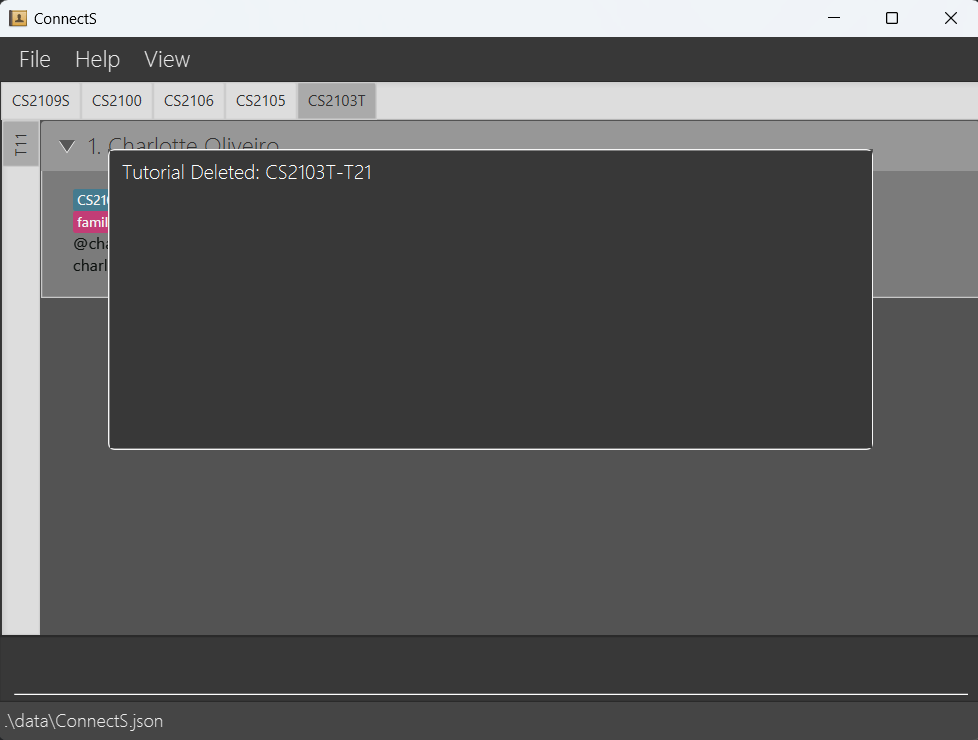
Example:
deleteTut CS2103T-T12deletes the tutorial CS2103T-T12 in ConnectS.
This confirmation message will appear:
Sorting tutees: sort
You can sort your tutees in lexicographical order using this command.
Format: sort
Pinning tutees: pin, unpin
You can pin tutees to always show up at the top of the list, or unpin an already pinned tutee using these commands.
Format:
Pin a tutee: pin INDEX
Unpin a tutee: unpin INDEX
- Pins/unpins the tutee at the specified
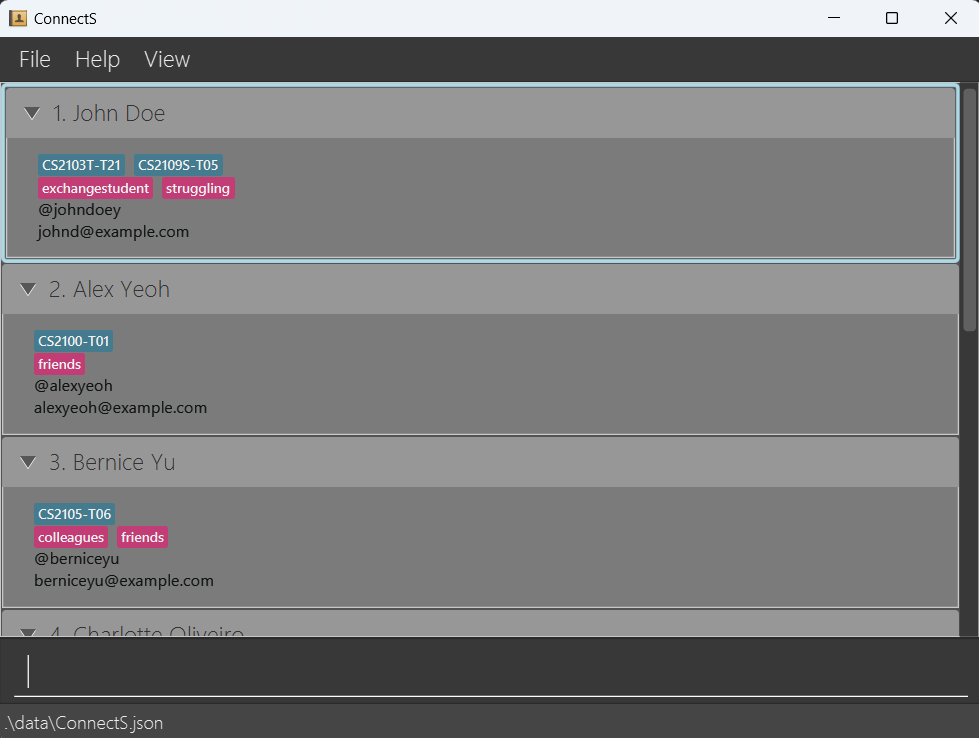
INDEXof the currently displayed list. - The pinned tutee(s) will have a blue outline.
- Unpinned tutees will be sent to the bottom of the list.
Example:
pin 7pins the 7th tutee in the list.unpin 1unpins the 1st tutee in the list.
How a pinned tutee looks:
Tip: After unpinning a tutee, use the sort command to reorder the tutee that was sent to the bottom of the list.
Viewing a tab: view
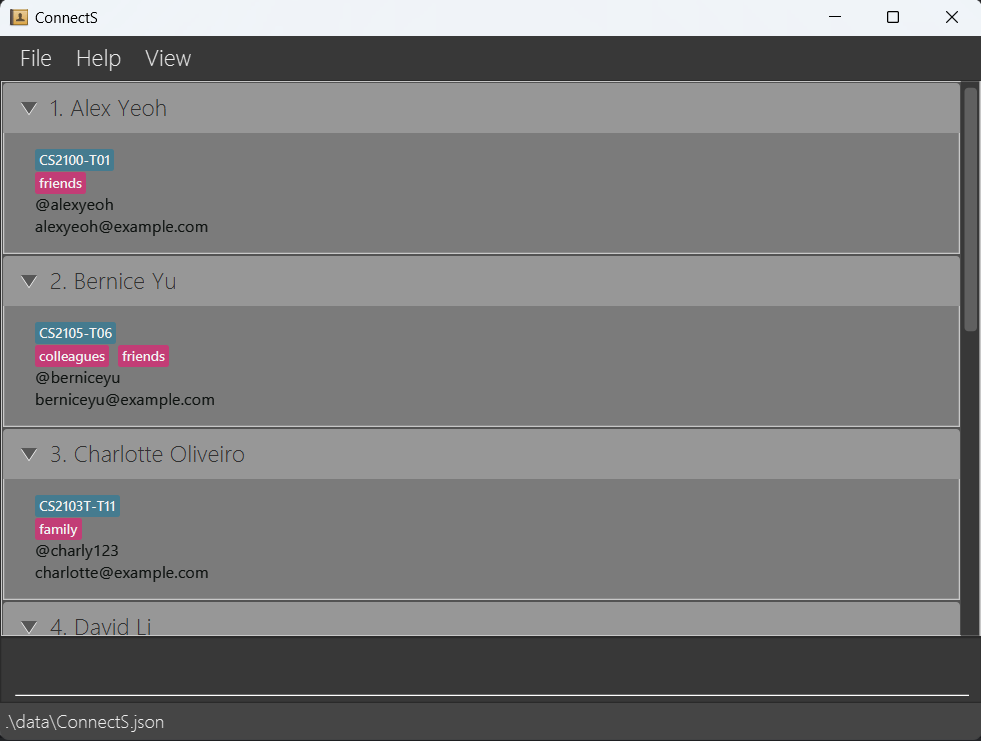
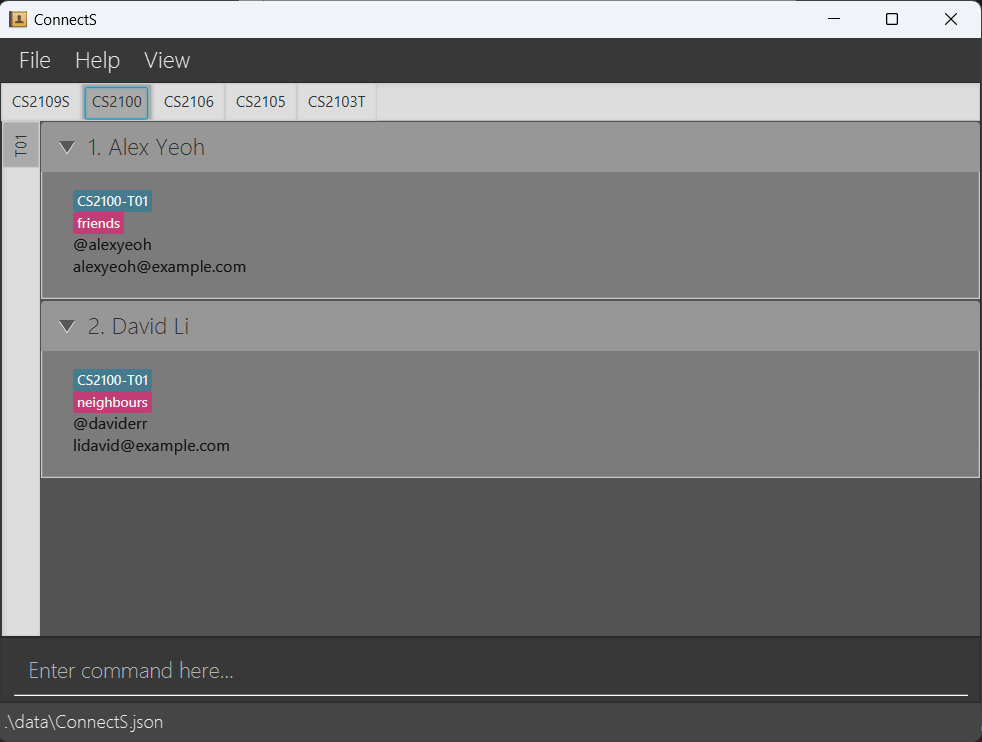
You can switch the view mode to "View Tabs" to view a specific module and tutorial, or switch to "View All", which displays the entire list of tutees.
Format: view m/MODULE-TUTORIAL_GROUP, view m/all
"View All" mode:
"View Tabs" mode:
Tip: You can also switch view modes using the "View" menu button.
Clearing all tutees : clear
You can delete all tutees from ConnectS using this command.
Caution: This command is irreversible!
Format: clear
Exiting ConnectS: exit
Bye bye 😃
Format: exit
Saving the data
ConnectS data is saved in the hard disk automatically after you give any command that changes the data. There is no need to save the data manually.
Editing the data file
ConnectS data is saved automatically as a JSON file [JAR file location]/data/ConnectS.json. You are welcome to update data directly by editing that data file if you're an advanced user.
Caution:
If your changes to the data file make its format invalid, ConnectS will discard all data and start with an empty data file at the next run. Hence, it is recommended to make a backup of the file before editing it.
Furthermore, certain edits can cause ConnectS to behave in unexpected ways (e.g., if a value entered is outside the acceptable range). Therefore, edit the data file only if you are confident that you can update it correctly.
FAQ
Q: How do I transfer my data to another Computer?
A: Install the app in the other computer and overwrite the empty data file it creates with the file that contains the data of your previous ConnectS home folder.
Known issues
When using multiple screens, if you move the application to a secondary screen, and later switch to using only the primary screen, the GUI will open off-screen. The remedy is to delete the
preferences.jsonfile created by the application before running the application again.If you minimize the Help Window and then use the
Helpmenu button, or the keyboard shortcutF1, again, the original Help Window will remain minimized, and no new Help Window will appear. The remedy is to manually restore the minimized Help Window.
Command summary
| Action | Format, Examples |
|---|---|
| Add | add n/NAME t/TELEGRAM_HANDLE e/EMAIL m/MODULE-TUTORIAL_GROUP... [tag/TAG]... e.g. add n/James Ho t/@jameshoho e/jamesho@example.com m/CS2030S-T08 |
| Clear | clear |
| Delete a Tutee | delete INDEXe.g. delete 3 |
| Delete a Module | deleteMod MODULE e.g. deleteMod CS2103T |
| Delete a Tutorial | deleteTut MODULE-TUTORIAL_GROUP e.g. deleteTut CS2103T-T01 |
| Edit | edit INDEX {n/NAME t/TELEGRAM_HANDLE e/EMAIL m/MODULE-TUTORIAL_GROUP... tag/TAG...}e.g. edit 2 n/James Lee e/jameslee@example.com |
| Find | find <n/NAME... t/TELEGRAM_HANDLE... e/EMAIL...>e.g. find n/James Jake |
| List | list |
| Sort | sort |
| Pin | pin INDEX, unpin INDEX e.g. pin 7 |
| View | view m/MODULE-TUTORIAL_GROUP, view m/all e.g. view m/CS2103T-T03 |
| Help | help |
Glossary
| Term | Meaning |
|---|---|
| Command Line Interface | A texted-based user interface where the user executes functions by typing in commands. |
| Graphical User Interface | A graphics-based user interface where the user executes functions by using mouse and menus. |
| cd | A terminal command that allows you to switch the current directory. |
| Parameter | Information that you give to a command. |
| Index | Ordering of the tutees, starting from 1. |
| Module-Tutorial Group | An input parameter that combines the module and tutorial group numbers of a tutee e.g. CS2101-T02. |
| Lexicographical | A sorting order that sorts according to the unicode of the name, i.e. numbers 0-9 come first, sorted by ascending order, then capital letters by alphabetical order, then lower case letters in alphabetical order. e.g. Alex123, alex456, 123alex will be sorted as 123alex, Alex123, alex456. |
| Alphanumeric Characters | A group of characters that includes all English alphabet letters (uppercase and lowercase) and numbers 0-9. |